Essential Checks When Your Refurbished iPhone Arrives: Ensuring Quality and Longevity
When you invest in a refurbished iPhone, you're making a smart economic choice that also supports a more sustainable approach to technology. However, unlike purchasing a brand-new device, a refurbished unit requires a thorough inspection upon arrival to ensure it meets the quality standards you expect and will provide reliable service for years to come. This comprehensive checklist will guide you through the critical tests to perform as soon as your 'new-to-you' iPhone lands in your hands, safeguarding your investment and maximizing its longevity.
Editor's pick: Refurbished iPhones on Amazon → As an Amazon Associate, this site earns from qualifying purchases.
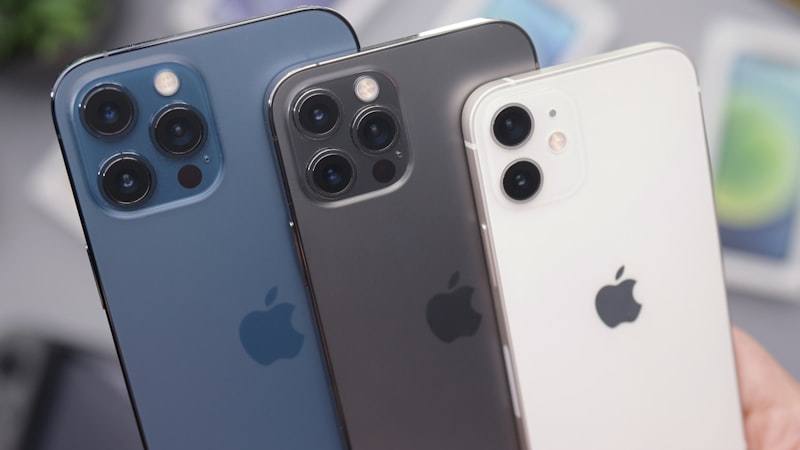
Initial Physical Assessment
Before even powering on the device, a meticulous visual inspection is paramount.
Packaging and Accessories
- Check Contents: Ensure all advertised accessories (charger, cable, SIM tool) are present. While refurbished phones often come with third-party accessories, confirm they are functional and safe.
- Secure Packaging: The phone should be securely packed, indicating care during shipping.
Exterior Condition
- Screen Integrity: Carefully examine the display for any cracks, deep scratches, or chips. Minor cosmetic imperfections are common with refurbished devices, but anything that compromises visibility or touch functionality is a red flag.
- Body and Frame: Inspect the device's frame, back glass, and corners for dents, significant scratches, or signs of impact. Pay attention to areas around buttons and ports.
- Port Cleanliness: Ensure the Lightning or USB-C port is free of debris, which can hinder charging or data transfer. Similarly, check the SIM card tray slot.
Software and Hardware Verification
Once the physical condition is deemed acceptable, it's time to power on and dive into functionality tests.
Activation and Setup
- Power On: The device should boot up without issue.
- iCloud Lock: During setup, ensure the device isn't iCloud locked to a previous owner. If it is, stop immediately and contact the seller for a return. A legitimately refurbished phone will be factory reset and ready for your Apple ID.
- Correct Model: Verify the model number in Settings > General > About matches what you purchased.
Battery Health
One of the most critical aspects of a refurbished iPhone is its battery. Navigate to Settings > Battery > Battery Health & Charging > Maximum Capacity. Look for a percentage that aligns with the seller's guarantee. While 100% is rare for refurbished, anything below 80% will significantly impact daily usage and longevity.
Display Performance
The screen is your primary interface. Test it thoroughly:
- Dead Pixels: Open a full-screen image of a solid color (white, black, red, green, blue) to identify any stuck or dead pixels.
- Uniformity: Check for discolouration, yellow tints, or uneven backlighting, especially on a white background.
- Touch Responsiveness: Open an app where you can draw (e.g., Notes) and drag your finger across the entire screen to ensure there are no unresponsive areas. Test multi-touch gestures like pinch-to-zoom. For a deeper dive into optimizing your iPhone's visual experience, including display calibration, consult our guides at iPhone View.
- True Tone/Night Shift: Verify these features work correctly if supported by your model.
Camera Functionality
- Front and Rear Cameras: Open the Camera app and test both front and rear lenses. Take photos and record short videos.
- Flash: Test the flash.
- Focus: Ensure the camera can focus properly on objects at various distances.
Audio System
- Speakers: Play some music or a video to test both the earpiece and bottom speakers. Listen for distortion or low volume.
- Microphone: Record a voice memo and play it back to ensure clear audio capture. Make a test call to check the earpiece and microphone during a conversation.
Connectivity
- Wi-Fi: Connect to your home Wi-Fi network and browse the internet.
- Bluetooth: Pair with a Bluetooth accessory (headphones, speaker) and confirm connection stability.
- Cellular: Insert your SIM card (or activate eSIM) and verify cellular signal, make a test call, send a text, and test mobile data.
Buttons and Switches
Press every physical button – Power, Volume Up, Volume Down, and the Mute switch – to ensure they feel tactile and respond correctly.
Sensors and Other Features
- Face ID/Touch ID: Set up and test your biometric security.
- Orientation Lock: Turn the phone to ensure the screen rotates (or locks rotation) as expected, indicating the accelerometer is working.
- Charging: Connect the charger and confirm the phone begins charging.
Final Considerations
If any of these checks reveal significant issues that weren't disclosed or fall outside the seller's grading, document them immediately with photos or videos. Review the seller's return policy and warranty information, and don't hesitate to initiate a return or exchange if the device doesn't meet the agreed-upon standards. A thorough inspection protects your investment and ensures your refurbished iPhone serves you well for many years.